
General Settings
Tenant settings control organization-wide configuration for your Vidori platform.
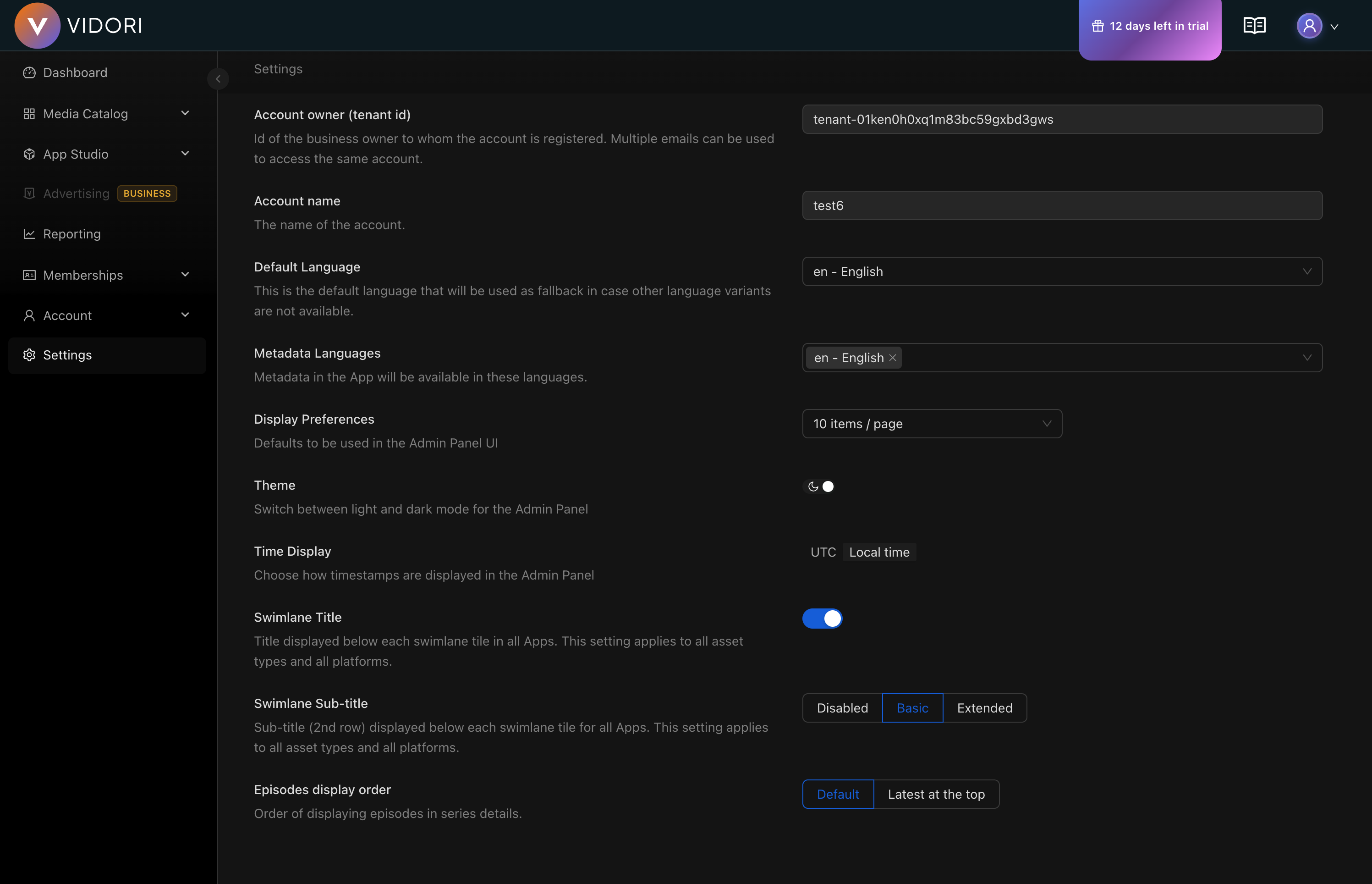
General Settings
Section titled “General Settings”Access at Settings → General.
Organization Profile
Section titled “Organization Profile”| Setting | Description |
|---|---|
| Organization name | Your company/brand name |
| Logo | Used in emails and reports |
| Timezone | Default timezone for scheduling |
| Date format | How dates are displayed |
| Language | Dashboard language |
Viewer Settings
Section titled “Viewer Settings”Player Configuration
Section titled “Player Configuration”| Setting | Description |
|---|---|
| Autoplay | Start videos automatically. Individual channels also have a per-channel autoplay setting. |
| Default quality | Initial quality setting |
| Playback speed | Allow speed adjustment |
| Picture-in-picture | Enable PiP mode |
| Chromecast | Enable casting |
| AirPlay | Enable Apple AirPlay |
Security Settings
Section titled “Security Settings”Authentication
Section titled “Authentication”| Setting | Options |
|---|---|
| Session timeout | Auto logout after inactivity |
| 2FA requirement | Optional, required for admins, or all |
| Password policy | Minimum length, complexity |
| Login attempts | Lockout after X failures |
-
Go to Settings → Security
-
Configure authentication rules
-
Set up API access if needed
-
Review and save
Email Settings
Section titled “Email Settings”Sender Configuration
Section titled “Sender Configuration”| Setting | Description |
|---|---|
| From name | Sender display name |
| From email | Sender email address |
| Reply-to | Where replies go |