
Advertising
Advertising is a powerful way to monetize your content while keeping it free for viewers. Vidori supports server-side ad insertion (SSAI) for seamless, buffer-free ad experiences.
Ad Types
Section titled “Ad Types”Ads that play before your content starts.
Best practices:
- Keep under 30 seconds total
- Skip option after 5 seconds improves experience
- Higher CPMs than mid-roll
Ads inserted during content playback.
Best practices:
- Insert at natural break points
- Space at least 8 minutes apart
- Avoid interrupting key moments
Ads that play after content ends.
Best practices:
- Lower completion rates
- Good for sequential content (episodes)
- Lower CPMs
Setting Up Ads
Section titled “Setting Up Ads”-
Go to Monetization → Advertising
-
Toggle Enable Advertising on — this is the master switch that controls whether the ad SDK loads in the player
-
Enter your VAST URL — the Video Ad Serving Template endpoint used to fetch video ads — and click Save
-
Configure the ad settings described below
Ad Settings
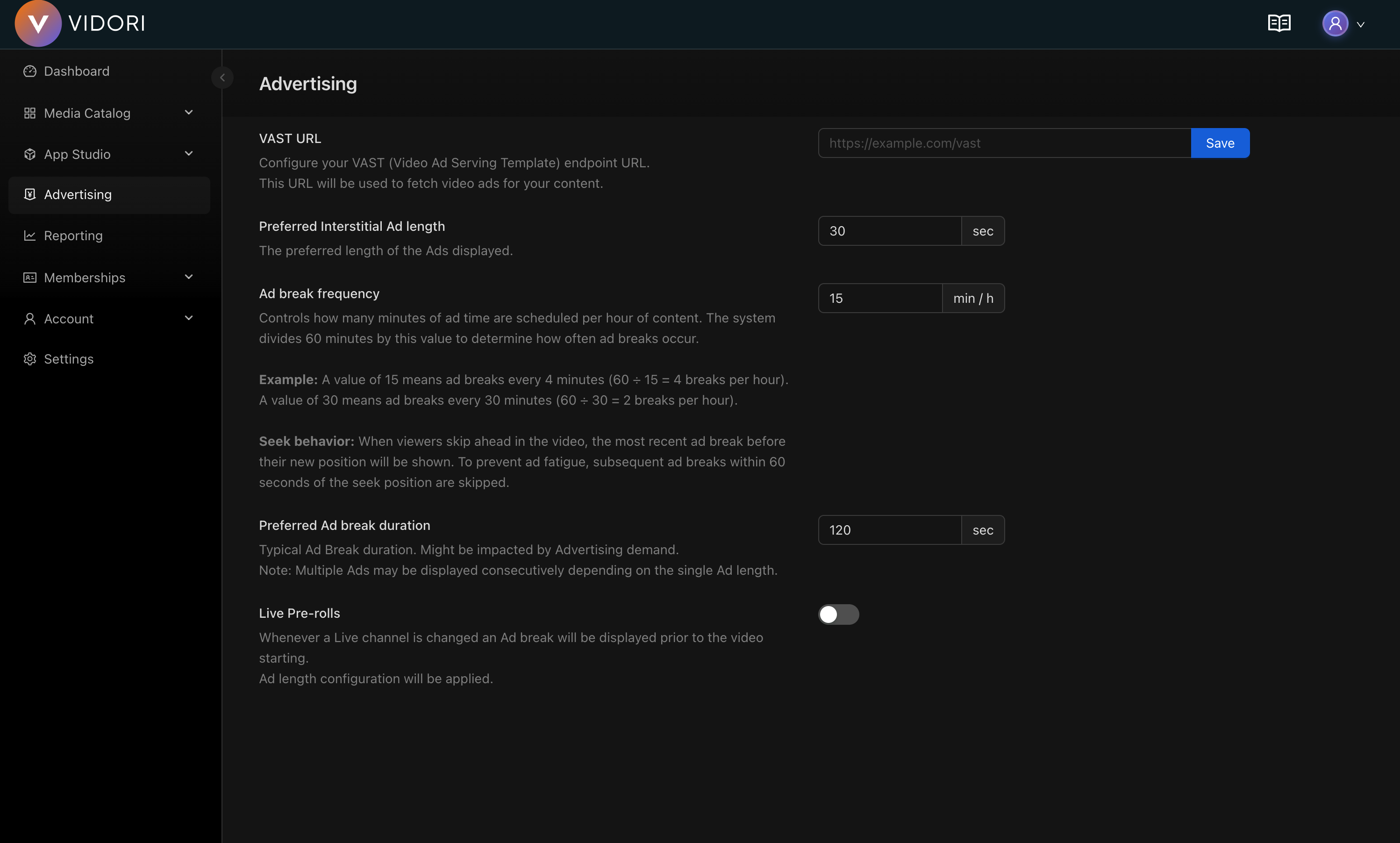
Section titled “Ad Settings”The advertising page lets you configure the following settings:
| Setting | Range | Description |
|---|---|---|
| Preferred Interstitial Ad length | 5–120 seconds | The preferred length of individual ads displayed during breaks |
| Ad break frequency | 1–60 min/hour | How many minutes of ad time are scheduled per hour of content. Higher values mean more frequent breaks. |
| Preferred Ad break duration | 15–300 seconds | Target duration for each ad break. Multiple ads may play consecutively depending on individual ad length. |
| Pre-rolls | On/Off | When enabled, an ad break plays before the video starts for both on-demand and live content. Uses the ad length configuration above. |
Mid-roll Guardrails
Section titled “Mid-roll Guardrails”Regardless of the ad break frequency setting, Vidori enforces the following guardrails to protect the viewer experience:
- Ad breaks are spaced at least 7 minutes apart
- A maximum of 6 ad breaks per hour
- Mid-roll ads are only inserted in content longer than 8 minutes
- Seek behavior: When a viewer skips ahead, the most recent ad break before their new position is shown. To prevent ad fatigue, subsequent ad breaks within 60 seconds of the seek position are skipped.
Ad Network Integration
Section titled “Ad Network Integration”Google Ad Manager (GAM)
Section titled “Google Ad Manager (GAM)”Most common integration for premium inventory.
-
Create a GAM account at admanager.google.com
-
Set up your ad units
-
Generate a VAST tag URL from your GAM ad unit
-
In Vidori, paste the VAST tag URL into the VAST URL field at Monetization → Advertising
-
Click Save
Ad Units and Targeting
Section titled “Ad Units and Targeting”The VAST URL above applies to your whole catalog. Individual channels, events and groups can each refine it, so different content can serve different ads.
A Google Ad Manager VAST tag names the ad unit it requests in its iu parameter,
and carries key-value targeting in cust_params:
https://pubads.g.doubleclick.net/gampad/ads?iu=/21775744923/mychannel/default&cust_params=tier%3Dfree&sz=640x480&...Two fields let you change those per piece of content:
| Field | What it does | When to use it |
|---|---|---|
| Ad Unit | Replaces iu — the request goes to a different GAM ad unit | You want separate inventory, separate reporting, or a direct-sold deal for this content |
| Ad Targeting | Adds key-values to cust_params | You want to slice one ad unit by channel, genre, sponsor or anything else, without creating new ad units in GAM |
Everything else in your VAST URL — sizes, macros, your own cust_params keys — is
left exactly as you configured it.
Where to set them
Section titled “Where to set them”-
Channels — Catalog → Channels → select a channel → Publishing tab
-
Events — Catalog → Events → select an event → Publishing tab
-
Groups — Catalog → Groups → edit a static group → Advertising section
Leave a field empty to inherit. Clearing a field that was set removes the override.
Which setting wins
Section titled “Which setting wins”An asset can inherit from both its own settings and any group it belongs to. The two fields resolve differently, because GAM treats them differently:
- Ad Unit — the group wins. A request carries exactly one ad unit, so a group’s ad unit replaces whatever the channel or event sets. This is what makes sponsor and partner groups work: put content in the group and it all serves from the sponsor’s ad unit, whatever the individual channels say.
- Ad Targeting — everything merges. The asset’s key-values and the group’s are combined. If both set the same key, the group’s value wins.
If an asset is in several groups with settings, the group ordering decides.
A worked example — a channel in a sponsored group:
| Ad Unit | Ad Targeting | |
|---|---|---|
| Channel “Sports 1” | /21775744923/mychannel/sports | channel=sports1&type=live |
| Group “Acme Sponsored” | /21775744923/mychannel/sponsor | sponsor=acme |
| Ad request | /21775744923/mychannel/sponsor | channel=sports1&type=live&sponsor=acme |
Ad unit format
Section titled “Ad unit format”Enter the full GAM ad unit path, including your network code:
/21775744923/mychannel/sportsThe network code must match the one in your VAST URL. An ad unit from a different GAM network is ignored and the tenant VAST URL is used instead — requesting a unit your network does not own would simply return no ads.
Targeting format
Section titled “Targeting format”Enter key-value pairs the way GAM writes them, joined by &:
channel=sports1&type=liveUse a comma for a key with several values: genre=sport,news.
Verifying
Section titled “Verifying”Play the content and inspect the outgoing ad request in your browser’s network
tab. Check that iu shows the ad unit you configured and that cust_params
contains your keys. In GAM, the request appears under the ad unit you set.
Analytics
Section titled “Analytics”Track ad performance at Analytics → Advertising:
| Metric | Description |
|---|---|
| Impressions | Total ad views |
| Fill rate | % of requests filled |
| CPM | Revenue per 1000 impressions |
| Completion rate | % watched to end |
| Revenue | Total earnings |