
Banners
Banners are eye-catching promotional displays that appear at the top of your streaming apps. Use them to highlight featured content, announce new releases, or promote special events.
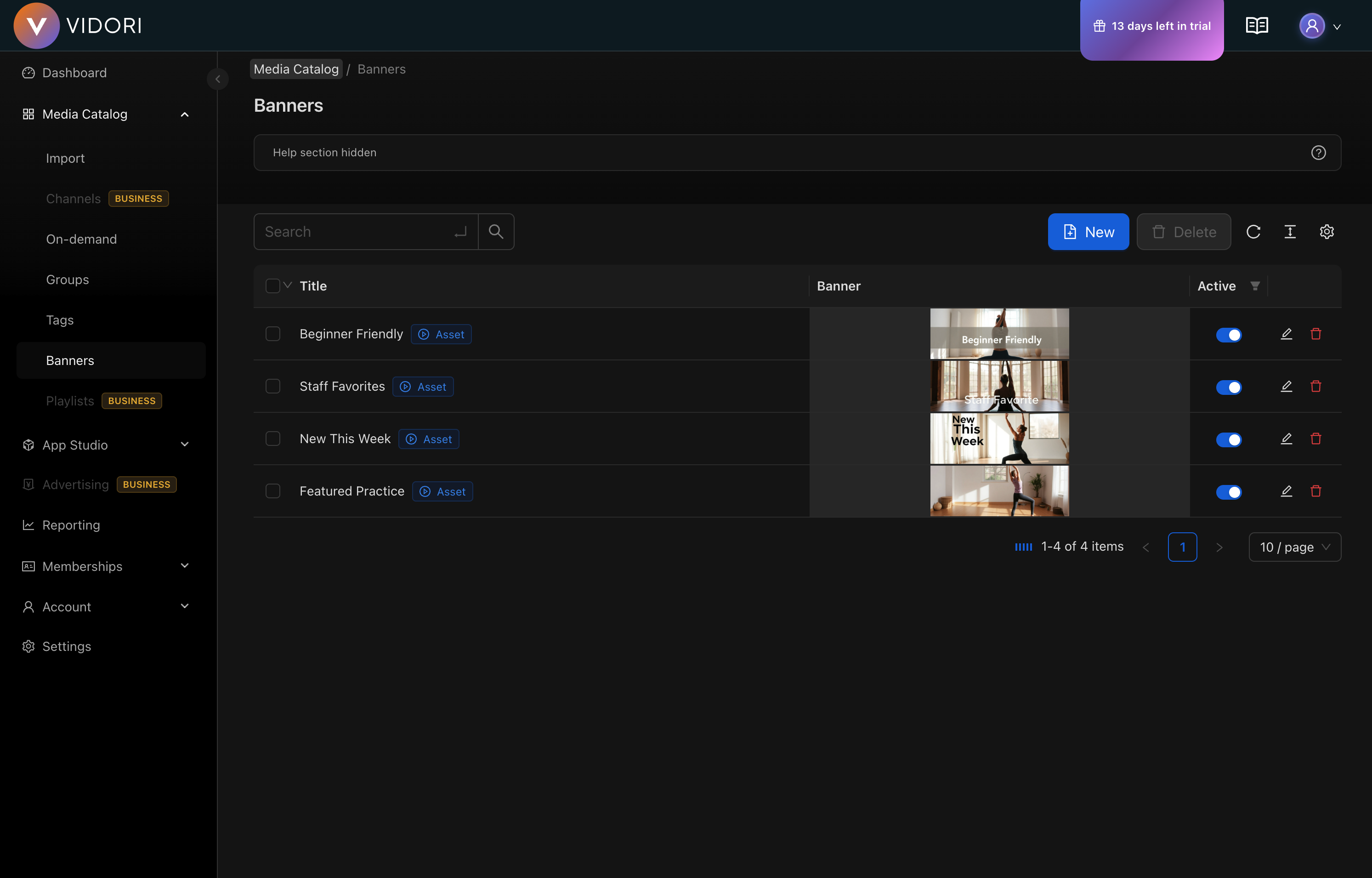
Banner Types
Section titled “Banner Types”| Type | Description | Best For |
|---|---|---|
| Hero | Large, prominent display | Main featured content |
| Banner | Standard promotional size | Secondary promotions |
| Small Banner | Compact format | Quick announcements |
Creating a Banner
Section titled “Creating a Banner”-
Navigate to Banners
Go to Catalog → Banners and click Create Banner.
-
Set Banner Details
- Enter a name (supports multiple languages)
- Choose the banner type (Hero, Banner, Small)
- Set the banner to Active or Inactive
-
Upload Banner Image
Click the poster area to upload your banner image. Recommended dimensions:
- Hero: 1920x1080 (16:9)
- Banner: 1920x600 (wide)
- Small Banner: 800x200 (compact)
-
Link the Banner
Choose what happens when viewers click:
- Asset - Link to a specific movie, series, or episode
- Content Group - Link to a collection of content
- External URL - Link to an external website
-
Save and Activate
Click Save. Toggle the banner to Active when ready to display.
Banner Destinations
Section titled “Banner Destinations”Linking to Assets
Section titled “Linking to Assets”When linking to an asset, the banner will:
- Display a play icon indicator
- Navigate directly to the content player
- Work across all app platforms
Linking to Groups
Section titled “Linking to Groups”When linking to a content group, the banner will:
- Display a folder icon indicator
- Navigate to the group browse screen
- Show all content within that group
Linking to URLs
Section titled “Linking to URLs”When linking to an external URL, the banner will:
- Display a globe icon indicator
- Open the URL in an external browser
- Useful for promotions, tickets, or partner sites
Managing Banners
Section titled “Managing Banners”Active vs Inactive
Section titled “Active vs Inactive”- Active banners appear in your apps
- Inactive banners are hidden but preserved for future use
Use inactive status to prepare banners ahead of time or temporarily remove seasonal promotions.
Banner Order
Section titled “Banner Order”Banners display in the order they appear in the management table. Drag to reorder and control which banners appear first.
Design Tips
Section titled “Design Tips”Image Guidelines
Section titled “Image Guidelines”- Use high-resolution images (at least 2x display size)
- Ensure text is readable at all sizes
- Leave space for platform-specific overlays
- Test on both light and dark backgrounds
Content Strategy
Section titled “Content Strategy”- Rotate banners regularly to keep content fresh
- Limit active hero banners to 3-5 at a time
- Use timely banners for new releases and events
- Consider creating platform-specific versions
Platform Considerations
Section titled “Platform Considerations”Banners display differently across devices:
| Platform | Hero Display | Interaction |
|---|---|---|
| Web | Full width | Click |
| Mobile | Full width, auto-scroll | Tap |
| CTV | Full width, focused navigation | Select |
| Tablet | Full width | Tap |
Test your banners across platforms to ensure they look great everywhere.